Free, no card, no account

Free tools for editors.

Small panels for Premiere Pro and After Effects, made for real edits. They are free to keep, on Mac and Windows. Type your email and the download link arrives in a minute.

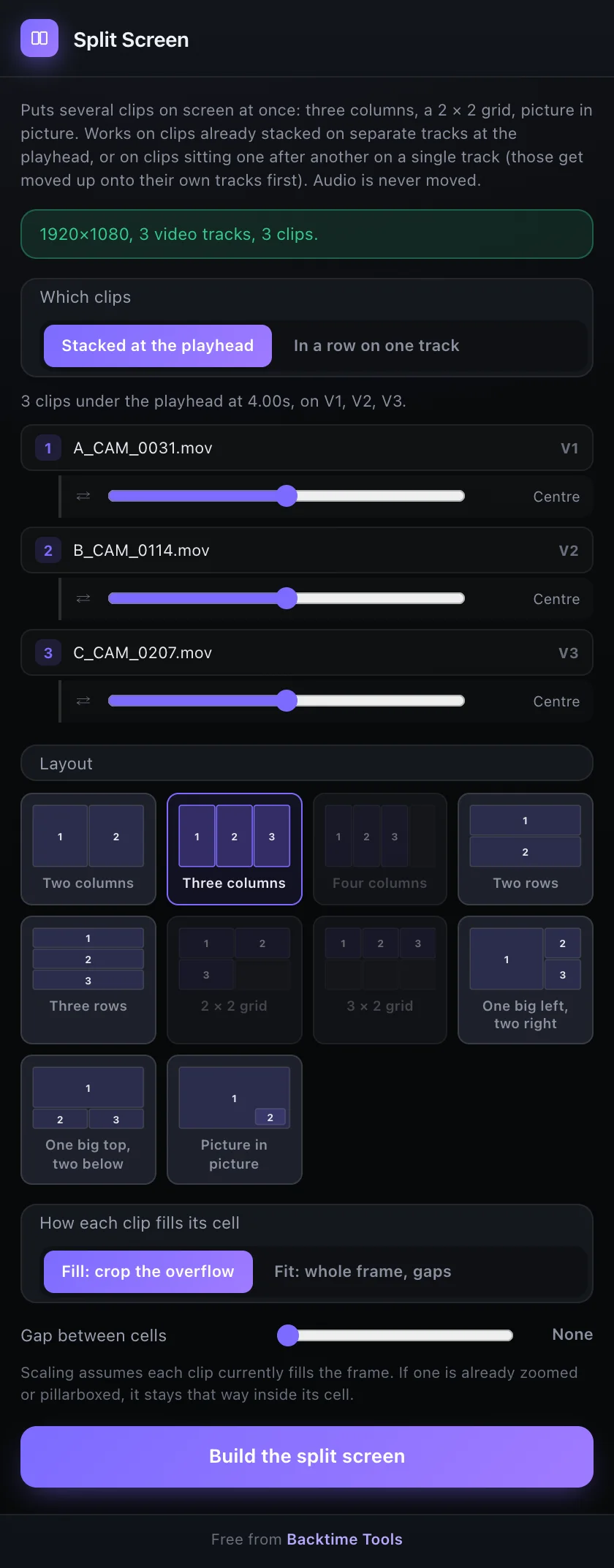
The Split Screen panel in Premiere Pro: three clips under the playhead, the Three columns layout picked, Fill chosen, and the Build the split screen button.
Premiere Pro

Split Screen

Puts several clips on screen at once in Premiere: columns, rows, grids, one big and two small, or picture in picture.

  • Pick a layout and it scales, crops and places every clip for you
  • Slide each clip to frame it; your audio is never moved
  • Works on stacked clips, or on clips in a row on one track

How it works

  1. Stack the clips on separate video tracks under the playhead. Or choose “In a row on one track” and they are moved up onto their own tracks first.
  2. Pick a layout, then Fill (crops the overflow) or Fit (whole frame, with gaps). Slide each clip to frame it.
  3. Click Build the split screen. Undo restores each clip’s position, scale and crop while the panel stays open.

Also inside Script Cutter, with every other tool for multi cam shows.
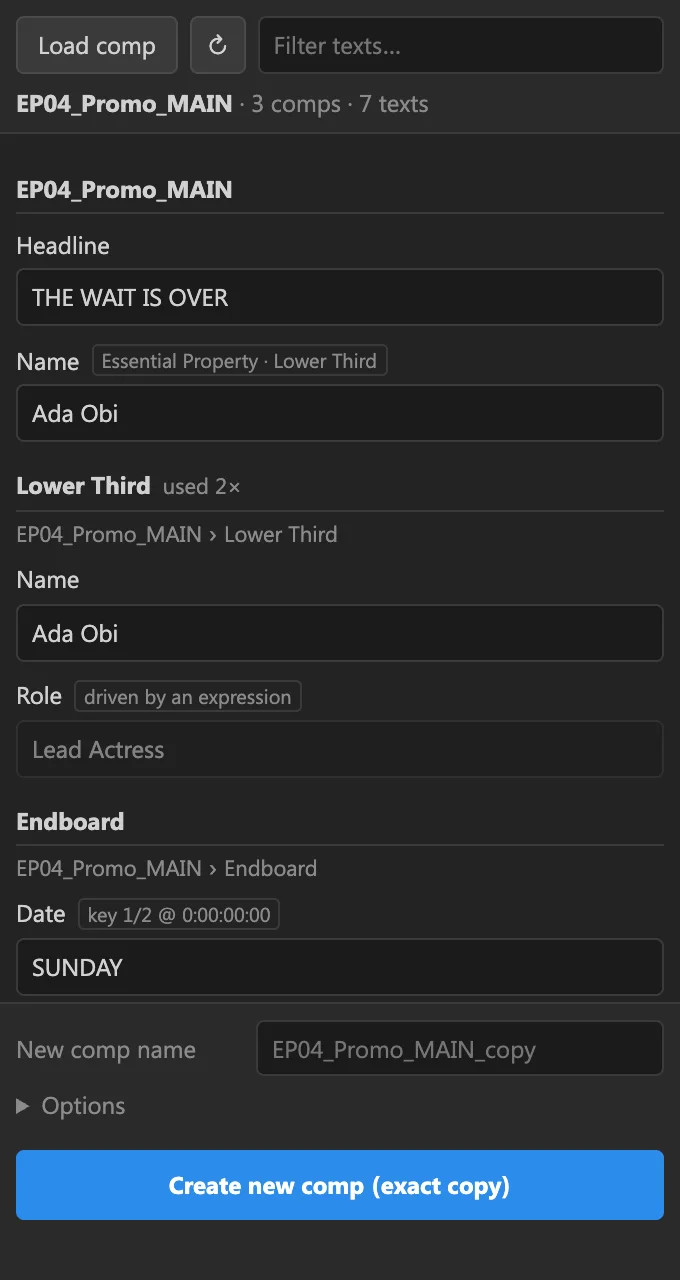
The Deep Dupe panel in After Effects, listing the text in a comp and its nested comps before making an independent copy.
After Effects

Deep Dupe

Duplicates a comp and every comp nested inside it, so the copy is fully independent. Change its text in the panel as you copy.

  • Every nested comp is copied, never shared with the original
  • Edit the text first, including Essential Properties
  • The original comp stays untouched

How it works

  1. Open the comp you want to copy and click Load comp.
  2. Every text in it, and in every comp nested inside it, is listed. Type the new text where you need it.
  3. Name the copy and click Create new comp. Expressions and Essential Properties are carried over and point at the new comps, and you choose where the copies go in the Project panel.

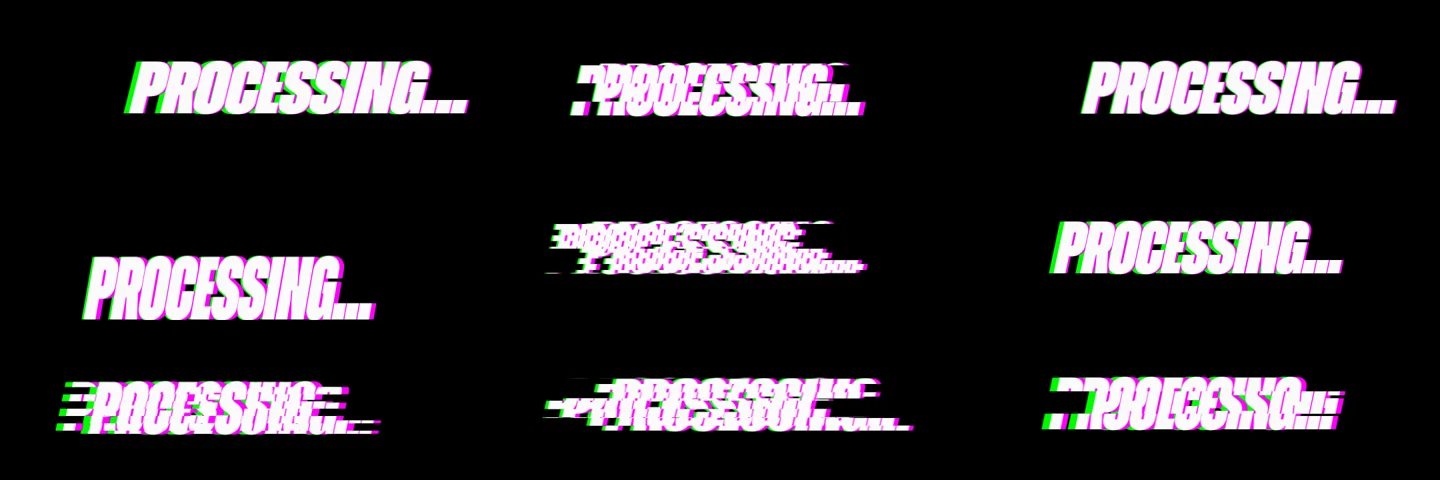
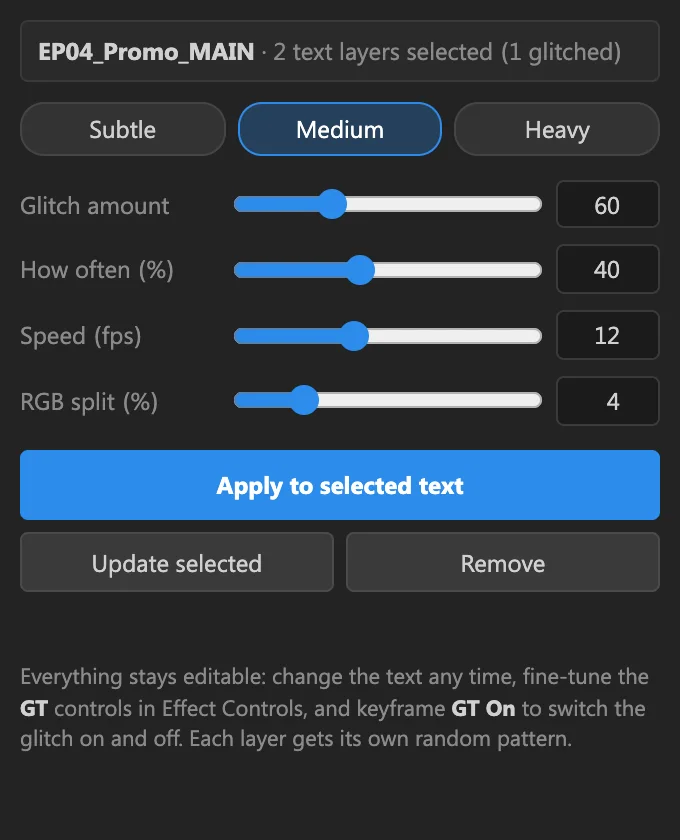
Frames of a text layer glitching: slices, tears and a pink and green colour split. The Glitch Text panel: Subtle, Medium or Heavy, with sliders for amount, frequency, speed and colour split.
After Effects

Glitch Text

A live glitch on any text layer: jitter, slices, tears and a colour split, built from After Effects’ own effects and expressions.

  • Subtle, Medium or Heavy, then fine tune it
  • The text stays editable; the glitch follows it
  • Keyframe it on and off. No plugins needed

How it works

  1. Select one or more text layers.
  2. Pick Subtle, Medium or Heavy, adjust the amount, how often, speed and colour split, then click Apply.
  3. Fine tune it later in Effect Controls, and keyframe GT On to switch the glitch on and off. Update or Remove it from the panel any time.

We keep your email to send the link and, now and then, to tell you about new tools. Reply “stop” to any email and we will not write again. See our privacy policy.